
The fetch MCP server: read web pages safely from your AI app
The official fetch MCP server lets your AI app read web pages as markdown. Here is what its tool and prompt do, how its private-address guard and robots.txt rules work, how to set it up, and how to limit prompt injection from the pages it reads.
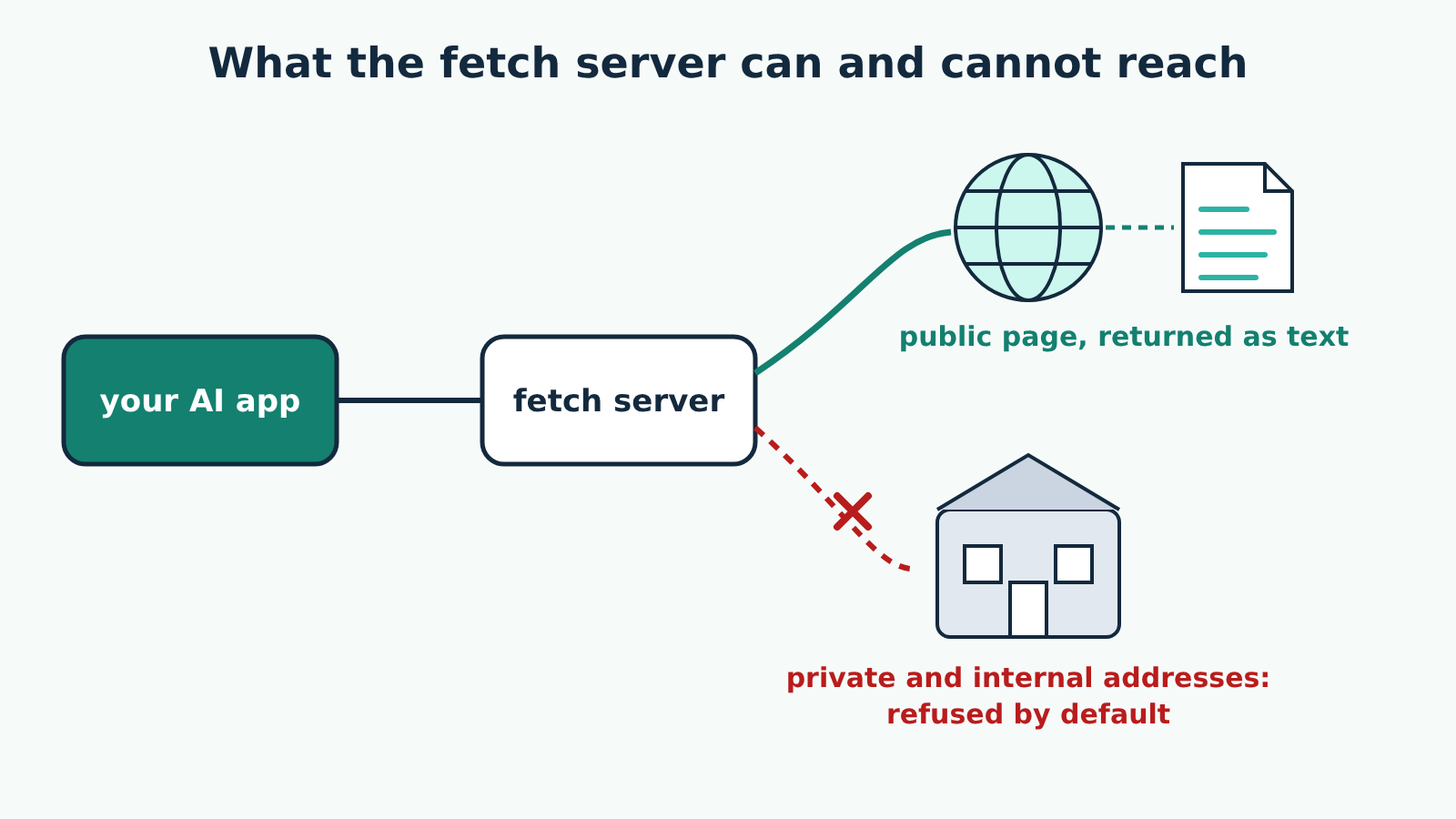
The fetch server is the official MCP reference server for reading web pages. It gives your AI app one tool, fetch, which downloads a URL and hands the page back to the model as markdown text, a few thousand characters at a time. It is useful for reading documentation or an article the model does not know, and it is also the most direct route for untrusted text to reach your assistant, so it is worth setting up with care.
Checked against: mcp-server-fetch version 2026.10.24 and its README in the modelcontextprotocol/servers repository, and the MCP specification version 2026-07-28. The configuration examples are the ones that README gives. We have not checked them against a particular release of any AI app, so confirm where your app keeps its MCP settings in its own documentation.
New to the vocabulary? Our plain-English guide to MCP hosts, clients and servers explains what a server and a tool are.
What the server offers
The server has one tool and one prompt.
The fetch tool takes these arguments:
url(required): the address to fetch.max_length: the most characters to return; the default is 5000.start_index: where in the page to start; the default is 0. Because long pages are cut off atmax_length, the model can callfetchagain with a higherstart_indexto read the next chunk.raw: set to true to get the page without the markdown conversion.
The tool is marked read-only and not destructive in its MCP hints, and also "open world", meaning it reaches arbitrary hosts on the internet.
The fetch prompt does the same job, but you start it yourself, usually from a menu or slash command, and give it a URL. The difference matters for robots.txt, covered below.
When a fetch fails, for example because the page is unreachable, returns an HTTP error or is blocked by robots.txt, the server returns a tool result whose text starts with Error executing tool fetch: and explains the problem, so the model can read the reason and decide what to do next.
What it can and cannot reach

A server that fetches any URL a model asks for could be pointed at things only your computer can see: a router's admin page, a development server, or a cloud machine's metadata address. The README carries a caution about exactly this, and the server guards against it by default. It refuses any request whose host resolves to an address that is not publicly routable, which includes loopback addresses such as 127.0.0.1, private ranges such as 192.168.0.0/16 and 10.0.0.0/8, link-local addresses including the cloud metadata address 169.254.169.254, and other special-purpose ranges. Each redirect is checked the same way.
Two limits of that guard are spelled out in the README. It checks the addresses a hostname resolves to before the request, so it does not protect against DNS rebinding between the check and the connection. And a hostname the server cannot resolve itself, one only a proxy can resolve, is not checked.
If you need to read an intranet page or a local development site, the README's switch is the --allow-private-ips argument. Turning it on removes the guard entirely, so add it only to a configuration you use for that purpose.
robots.txt and the user agent
By default the server obeys a site's robots.txt when the model asks for a page through the tool, but not when you ask through the prompt, on the reasoning that a user-initiated fetch is like you opening the page yourself. Every redirect of a tool fetch is checked against the robots.txt of the site it leads to. The --ignore-robots-txt argument turns this off.
The server identifies itself with a different user agent for each case, ModelContextProtocol/1.0 (Autonomous; ...) for the tool and ModelContextProtocol/1.0 (User-Specified; ...) for the prompt, so site owners can tell them apart. You can set your own with --user-agent=YourUserAgent.
Setting it up
The server is written in Python and runs on your own computer, started by your AI app. The README recommends uv, whose uvx command runs the server without a separate install step. Installing Node.js as well is optional; with it, the server switches to a different HTML simplifier that the README describes as more reliable.
For Claude Desktop, the README's configuration is:
{
  "mcpServers": {
    "fetch": {
      "command": "uvx",
      "args": ["mcp-server-fetch"]
    }
  }
}
Options go in the args list after the server name, for example ["mcp-server-fetch", "--ignore-robots-txt"].
The README also gives two alternatives. With Docker, the command is docker and the arguments are ["run", "-i", "--rm", "mcp/fetch"]. With pip, you run pip install mcp-server-fetch first, then use python as the command and ["-m", "mcp_server_fetch"] as the arguments.
On Windows, if the server times out, the README suggests setting the PYTHONIOENCODING environment variable to utf-8 in the server's env block:
{
  "mcpServers": {
    "fetch": {
      "command": "uvx",
      "args": ["mcp-server-fetch"],
      "env": {
        "PYTHONIOENCODING": "utf-8"
      }
    }
  }
}
The README includes VS Code configuration as well, but the format of VS Code's MCP settings differs between its user settings and an mcp.json file, so follow VS Code's own MCP documentation for the exact layout.
Behind a proxy
If your network requires a proxy, the server picks it up from the standard HTTP_PROXY, HTTPS_PROXY and ALL_PROXY environment variables, honouring NO_PROXY, or you can set one with --proxy-url. Both HTTP(S) and SOCKS5 proxies work. A proxy setting the server cannot use makes every fetch fail with an error that says so.
Checking it works
To test the server outside your AI app, the README suggests the MCP Inspector:
npx @modelcontextprotocol/inspector uvx mcp-server-fetchIt opens a page where you can call fetch by hand and see exactly what the model would receive.
What access it needs
The fetch server needs network access and nothing else: it does not read or write your files and needs no API key or account. Its risk runs the other way. Everything it fetches goes straight into the model's context, and a web page can contain text written to look like instructions, sometimes hidden from human visitors. This is prompt injection, and the fetch server is the easiest way for it to reach you.
What an injected instruction can do depends on what else is connected to the same session. On its own, the fetch server can only read. Next to servers that write files, send messages or run commands, a planted instruction might try to use them. A few habits help:
- Keep approval prompts on for every tool that writes or sends, in every server connected alongside fetch.
- Avoid pairing fetch with broad write access in the same session. If you also use the filesystem server, keep its folder list narrow.
- Leave the private-address guard on unless you have a specific internal page to read.
- Treat what the model reports from a page as the page's claims, and check anything important at the source.
Limits worth knowing
The repository describes its servers as reference implementations meant to demonstrate MCP, not as production-ready software. The fetch server converts the HTML it downloads into text. The README does not describe running a page's JavaScript, so for a page that builds its content in the browser, check what actually comes back, for example in the Inspector. Long pages arrive in chunks of max_length characters, so the model may need several calls to read one article.
