
The filesystem MCP server: setup, tools and safe folder access
The official filesystem MCP server lets your AI app read, search and edit files, but only inside the folders you allow. Here is what each tool does, how folder access works, how to set it up in Claude Desktop, VS Code or Docker, and how to keep access narrow.
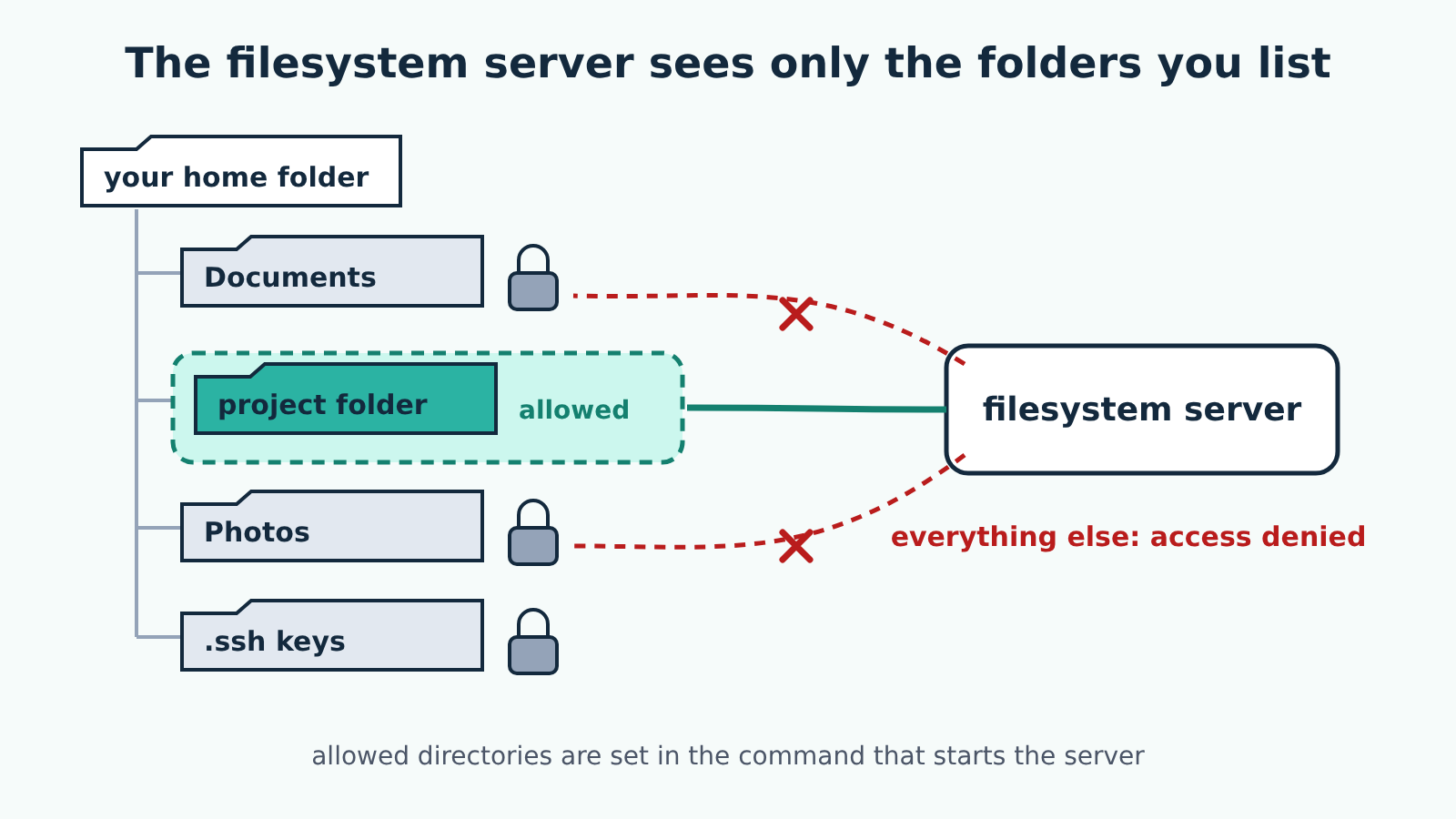
The filesystem server is the official MCP reference server for working with files on your own computer. Once connected, your AI app can read, search, write, edit and move files, but only inside the folders you name when the server starts. Getting that folder list right is most of the setup, and most of the safety.
Checked against: @modelcontextprotocol/server-filesystem version 2.0.1 and its README in the modelcontextprotocol/servers repository, and the MCP specification version 2026-07-28. The configuration examples below are the ones that README gives for Claude Desktop and VS Code. We have not checked them against a particular release of either app, so confirm where your app keeps its MCP settings in its own documentation.
If MCP terms like server, client and tool are new to you, start with our plain-English guide to hosts, clients and servers.
What the server can do
The server offers tools, which are actions your AI app's model can choose to call. The README lists these:
| Tool | What it does | Changes files? |
|---|---|---|
read_text_file | Reads a file as text, optionally only the first or last N lines | No |
read_media_file | Reads an image, audio or other file and returns it encoded with its type | No |
read_multiple_files | Reads several files at once; one failure does not stop the rest | No |
list_directory, list_directory_with_sizes | Lists a folder's contents, optionally with sizes | No |
directory_tree | Returns the folder structure as a nested list | No |
search_files | Finds files and folders matching a pattern | No |
get_file_info | Returns size, dates, type and permissions | No |
list_allowed_directories | Shows which folders the server may use | No |
create_directory | Creates a folder, and any missing parents | Yes |
write_file | Creates a file or overwrites an existing one | Yes |
edit_file | Replaces matching text in a file, with a dry-run preview option | Yes |
move_file | Moves or renames a file or folder; fails if the destination exists | Yes |
Each tool carries hints that tell the app whether it only reads, and whether it can destroy data. In the README, write_file, edit_file and move_file are marked destructive. Apps can use these hints to decide which calls need your approval, but the specification itself says such descriptions should be trusted only when the server is trusted.
How folder access works

The server may touch only its allowed directories, and the README's recommended way to set them is as arguments in the command that starts it:
mcp-server-filesystem /path/to/dir1 /path/to/dir2Every operation outside those folders is refused. The README says this command-line method is the only one that works on every protocol version, so it is the one to use.
There is an older second method. Apps that connect with a 2025-era protocol version and support a feature called Roots can send their own folder list and replace the command-line one. Roots is deprecated as of specification 2026-07-28, and an app connecting with that version cannot use it at all. So if the server starts with no folders on the command line, an app connecting with 2026-07-28 gets an error on every tool call saying so. You can ask the model to call list_allowed_directories at any time to see the current list.
Setting it up
The server runs on your own computer: your AI app starts it as a separate program. You need Node.js 24 or later when you run it through npx, as in the examples below, or Docker for the container option. If the app then reports spawn npx ENOENT, it cannot see the folder where Node.js is installed; our guide to fixing spawn npx ENOENT walks through the causes.
For Claude Desktop, the README adds this to claude_desktop_config.json, with your own folder paths in place of the examples:
{
  "mcpServers": {
    "filesystem": {
      "command": "npx",
      "args": [
        "-y",
        "@modelcontextprotocol/server-filesystem",
        "/Users/username/Desktop",
        "/path/to/other/allowed/dir"
      ]
    }
  }
}
On Windows, the README launches npx through cmd: the command becomes "cmd" and the args list starts with "/c", "npx" followed by the same entries.
For VS Code, the README gives two places for the configuration: your user-level mcp.json, opened by running MCP: Open User Configuration from the Command Palette, or a .vscode/mcp.json file in the workspace, which you can share with others. The top-level key there is servers, not mcpServers, and the README's example passes ${workspaceFolder}, so the server can reach only the project you have open:
{
  "servers": {
    "filesystem": {
      "command": "npx",
      "args": [
        "-y",
        "@modelcontextprotocol/server-filesystem",
        "${workspaceFolder}"
      ]
    }
  }
}
Running it in Docker
The README also offers a Docker image, mcp/filesystem. In that setup you mount each folder you want to share under /projects in the container, and pass /projects as the allowed directory. Adding ro to a mount makes that folder read-only for the server, which is the strongest way to let a model read files without any chance of changing them:
{
  "mcpServers": {
    "filesystem": {
      "command": "docker",
      "args": [
        "run",
        "-i",
        "--rm",
        "--mount", "type=bind,src=/Users/username/Desktop,dst=/projects/Desktop",
        "--mount", "type=bind,src=/path/to/other/allowed/dir,dst=/projects/other/allowed/dir,ro",
        "mcp/filesystem",
        "/projects"
      ]
    }
  }
}
What access it needs, and how to keep it narrow
Run through npx, the server runs as your user account. Inside the allowed folders it can read anything you can read and change anything you can change, including deleting data by overwriting or moving it. A few habits keep that contained:
- List the smallest folder that does the job. A single project folder is far safer than your home folder, which usually holds SSH keys, browser profiles and cloud-sync folders.
- Keep credentials out of allowed folders. If a project contains
.envfiles or key files, assume the model can read them and pass their contents on to other tools. - Use a read-only Docker mount when you only need the model to read.
- Keep your app's approval prompts on for
write_file,edit_fileandmove_file. For edits, asking for a dry run first shows the diff before anything changes.
The README also notes that overwrites are not crash-atomic: if the process dies mid-write, the file can be left partly written. Use version control or a backup for anything you would not want to lose.
Prompt injection through files
Whatever the server reads goes straight back to the model. A file can contain text written to look like instructions, such as a README in a downloaded project that tells the assistant to copy files elsewhere. The model may follow it, and with write tools and other servers connected, a planted instruction could become a real action. Treat files from outside sources as untrusted, keep write approvals on, and avoid connecting the filesystem server in the same session as servers that can send data out unless you need both.
Limits worth knowing
The repository describes its servers as reference implementations meant to demonstrate MCP, not as production-ready software, and asks users to judge their own security needs. The filesystem server works only with local files; it does not reach cloud drives unless their sync folder is on your disk and inside an allowed directory. read_text_file always treats a file as UTF-8 text, whatever its extension.
