Fix "spawn npx ENOENT" when an MCP server will not start
"spawn npx ENOENT" means your AI app could not find the npx program, usually because it does not see the folder where Node.js lives. Here is why your terminal finds it and the app does not, and the fixes from simplest to hardest, including the Windows ${APPDATA} case.
spawn npx ENOENT means your AI app tried to start an MCP server with the program npx and could not find a program by that name. Nothing is wrong with the server itself; it never got as far as starting. In almost every case the fix is one of three things: Node.js is not installed, the app cannot see the folder where Node.js lives, or the command line in the config holds more than a program name.
Checked against: the Troubleshooting section of the official guide Connect to local MCP servers on modelcontextprotocol.io, the Node.js child process documentation for how a missing program is reported, the filesystem server's README in the modelcontextprotocol/servers repository for the Windows config form, and the MCP specification version 2026-07-28. We have not checked these steps against a particular release of Claude Desktop, so if a menu name differs in your version, follow the app's own documentation.
Where you see the message
You will usually meet this in Claude Desktop, either as a "failed" or "disconnected" notice for the server in the app's settings, or in its log files. A quick vocabulary note: the host is the AI app you use, the server is the small program that gives it tools, and a local server runs on your own computer because the app starts it as a separate process. If those terms are new, our plain-English guide to hosts, clients and servers explains them.
The official guide puts Claude Desktop's logs here:
- macOS:
~/Library/Logs/Claude - Windows:
%APPDATA%\Claude\logs
mcp.log holds general messages about MCP connections, and each server gets its own mcp-server-SERVERNAME.log with that server's error output. On macOS you can watch them while you restart the app:
tail -n 20 -f ~/Library/Logs/Claude/mcp*.logThe same message appears with other launchers: spawn uvx ENOENT for Python servers run with uv, spawn docker ENOENT, spawn python ENOENT. ENOENT is the operating system's code for "no such file or directory", and Node.js, which Claude Desktop is built on, reports a program it cannot launch as spawn <command> ENOENT. Everything below applies to those too; swap npx for the program named in your error.
Why your terminal finds npx and the app does not
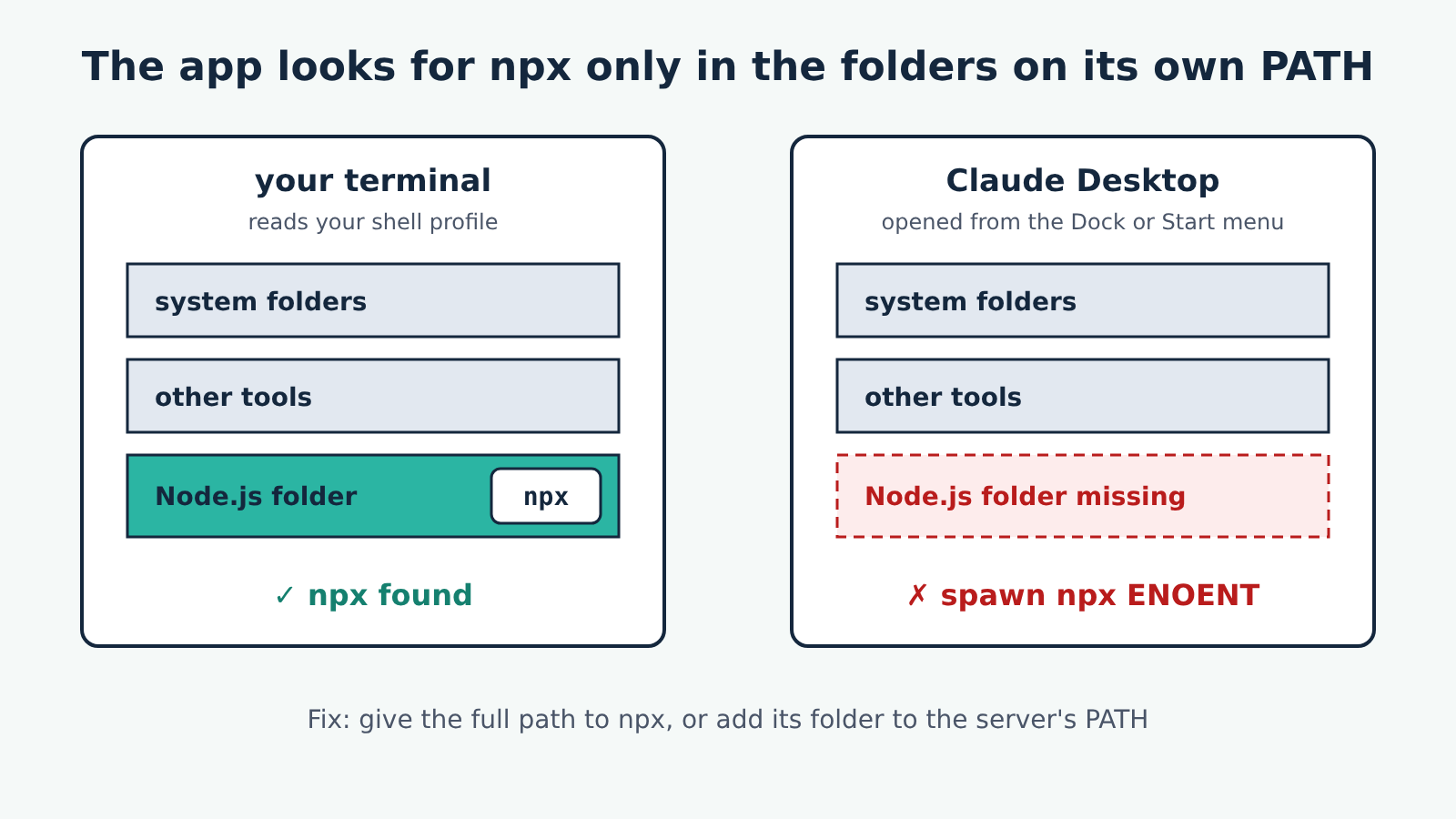
When the config says "command": "npx", the app looks through the folders listed in its PATH environment variable for a program called npx. Your terminal builds its PATH from your shell profile (.zshrc, .bashrc and similar). An app you open from the Dock, Finder or the Start menu does not read that profile, so it can end up with a shorter list.
This catches people whose Node.js lives somewhere only the profile mentions: version managers such as nvm (which keeps each version under ~/.nvm/versions/node/), Volta or fnm, and on macOS Homebrew, which installs to /opt/homebrew/bin on Apple Silicon. Typing npx --version in a terminal works, so the setup looks fine, and the app still cannot find it.
Fixes, simplest first
1. Check that Node.js is installed at all
npx ships with Node.js. In a terminal, run:
node --version
npx --version
If either says the command is not found, install Node.js from nodejs.org and check again. Then check the server's own README for a minimum Node.js version: the filesystem server, for example, needs Node.js 24 or later through npx.
2. Quit the app completely and open it again
Claude Desktop reads its config, and its PATH, when it starts. After installing Node.js or changing the config, quit the app fully (on macOS, Quit from the menu, not just closing the window; on Windows, also quit it from the system tray) and open it again. The official troubleshooting steps start here for a reason.
3. Check the command line in the config
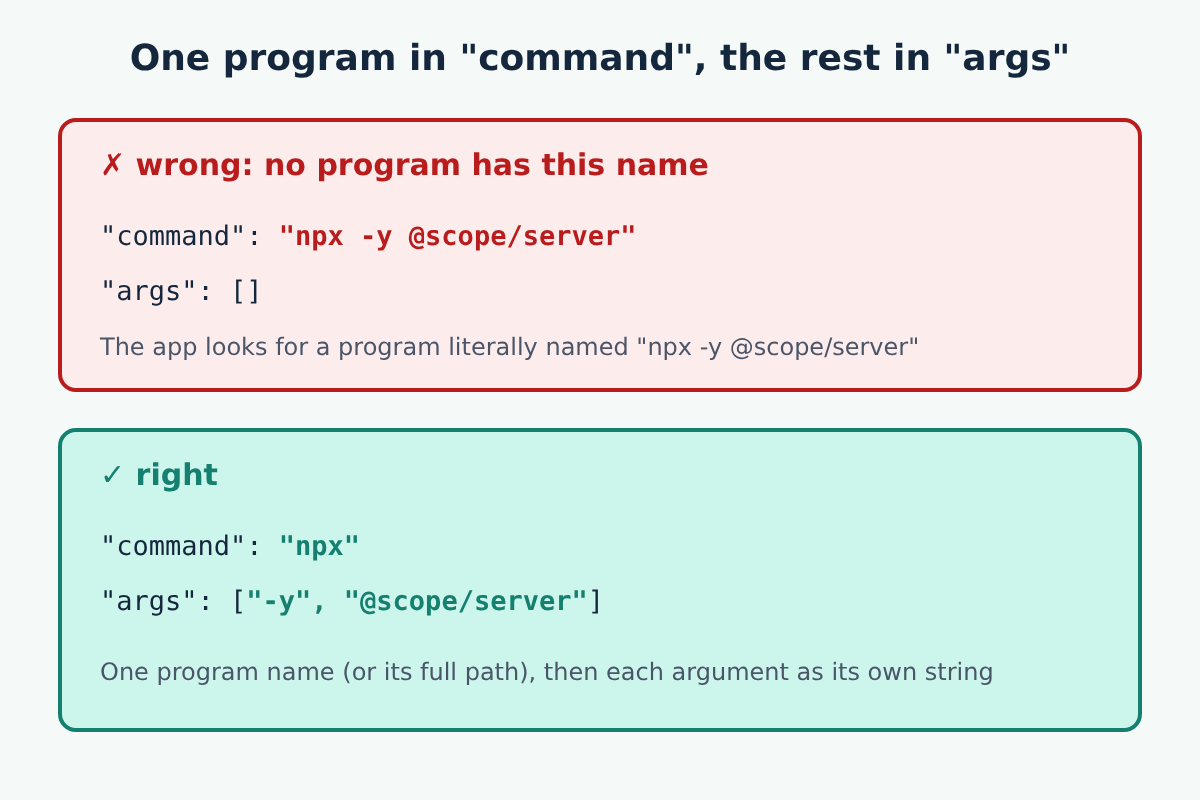
Open the config file (in Claude Desktop, through the Developer page of its settings, which offers an Edit Config button). The command value must be only the program, with every flag and package name as a separate string in args. A value like "npx -y @scope/server" makes the app look for a program whose whole name is that string, and none exists. A trailing space inside "npx " breaks it the same way.
4. Give the full path to npx
This is the fix for the PATH mismatch above, and the one that works most often. Find where npx lives in a terminal:
# macOS and Linux
which npx

# Windows (Command Prompt)
where npx
Then put that full path in command. On a Mac with Homebrew it might look like this, with the rest of the entry unchanged:
{
  "mcpServers": {
    "filesystem": {
      "command": "/opt/homebrew/bin/npx",
      "args": [
        "-y",
        "@modelcontextprotocol/server-filesystem",
        "/Users/username/Projects/my-project"
      ]
    }
  }
}
Use the path your own which npx printed, not this one. If you use nvm, the path contains the Node.js version number, so it breaks when you switch versions; update it when you do.
If the server now fails with env: node: No such file or directory, the app found npx but npx cannot find node, for the same reason. Claude Desktop's config accepts an env block that sets environment variables for the server process, so you can give it a PATH that includes the Node.js folder and the usual system folders:
"env": {
  "PATH": "/opt/homebrew/bin:/usr/local/bin:/usr/bin:/bin"
}
Again, put in the folder from your own which node.
5. On Windows: launch npx through cmd
The filesystem server's README shows the Windows form of its config: "command": "cmd", with args starting "/c", "npx" and then the usual entries. If the plain npx form fails on Windows, try that form for any server started with npx.
6. On Windows: ENOENT with ${APPDATA} in the path
The official guide has a specific entry for this. If the server's log shows ENOENT next to a path containing the literal text ${APPDATA}, the variable was not expanded. The guide's fix is to add the expanded value to the server's env block, using your own user folder:
"env": {
  "APPDATA": "C:\\Users\\user\\AppData\\Roaming\\"
}
Then start Claude Desktop again. The same guide notes that npx may keep failing if npm is not installed globally; if the folder %APPDATA%\npm does not exist, it suggests installing npm globally with npm install -g npm.
Check it works before you go back to the app
The MCP Inspector starts a server outside your AI app and shows its tools, so you can tell a config problem from a server problem. Our fetch server guide shows it in use. If the server starts in the Inspector but not in the app, the problem is in the app's config or PATH, which is what the steps above fix.
A safety note
A full path in command tells the app exactly which program to run, so make sure it points to the Node.js you installed, not a copy from somewhere you do not recognise. npx -y downloads a package and runs it without asking, with your user account's access, so only use package names copied from the server's official repository or documentation. And whatever the server can read, a page or file it returns can try to steer the model through prompt injection; give each server the least access it needs.
