
Fix "Unexpected token ... is not valid JSON" from a local MCP server
"Unexpected token ... is not valid JSON" in your MCP logs means a local server printed plain text on stdout, the channel reserved for protocol messages. Here is how to find the stray line and move it to stderr, from a quick terminal test to fixing your own server code.
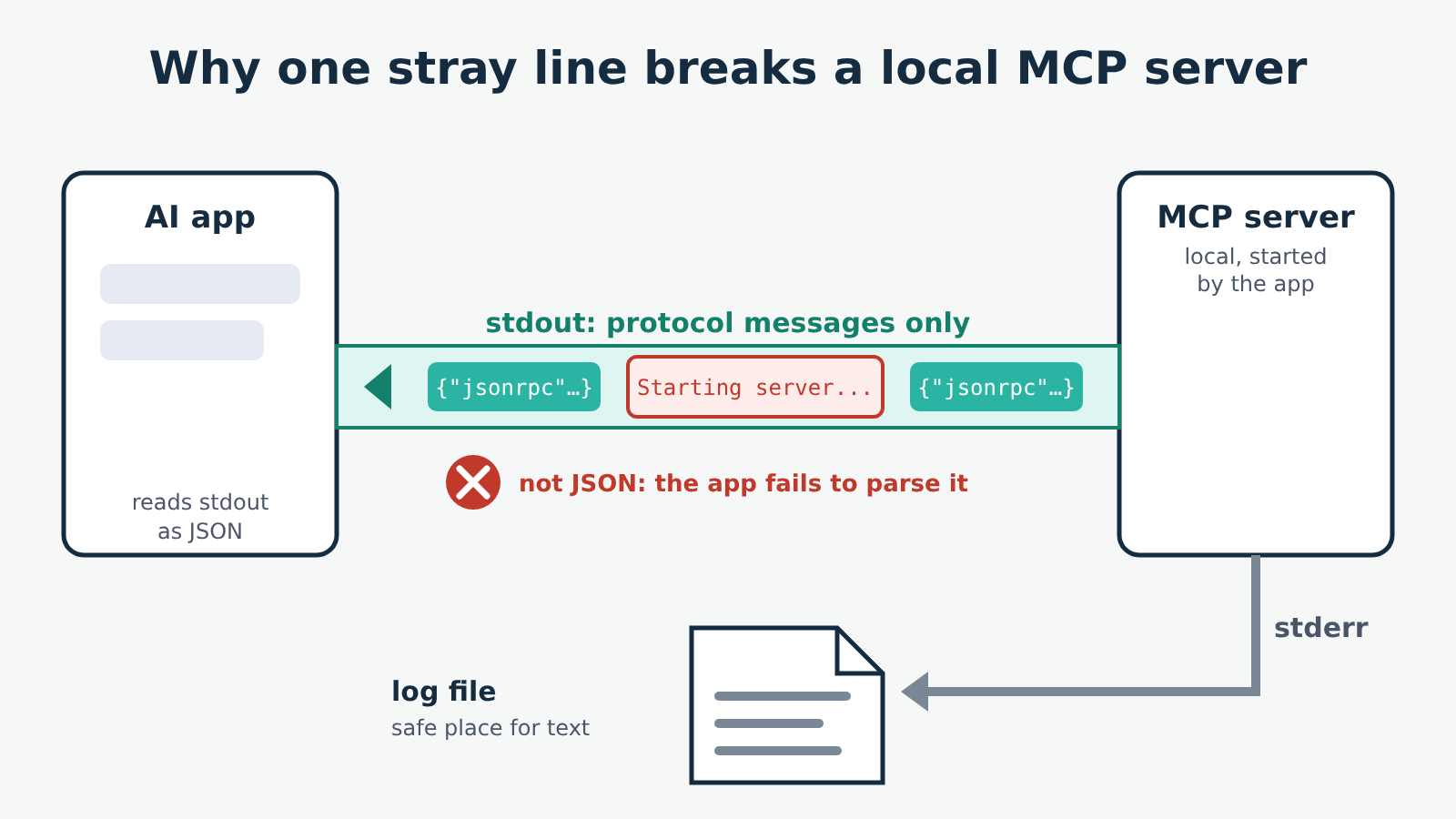
An error such as Unexpected token 'S', "Starting s"... is not valid JSON in your MCP logs means a local server printed ordinary text where the app expected a protocol message. The server is usually fine otherwise. Something in it (a startup banner, a debug print(), a console.log(), a library announcing itself) wrote to standard output, and for a local server standard output is reserved for the conversation between the app and the server. Move that text to standard error and the error goes away.
Checked against: the stdio section of the MCP specification's transports page (the rule has been the same since the first version, 2024-11-05), the logging note in the official Build an MCP server tutorial, and the Troubleshooting section of Connect to local MCP servers for where Claude Desktop keeps its logs. We have not checked this against a particular Claude Desktop release; the wording of the message comes from the JSON parser in Node.js, so other Node.js-based clients can show the same text.
What the message looks like
The exact text depends on what the server printed. The part in quotes is the start of the stray line, cut off after about ten characters, and the letter after token is its first character. A few typical forms:
Unexpected token 'S', "Starting s"... is not valid JSON
Unexpected token 'I', "INFO: Load"... is not valid JSON
Unexpected token 'W', "Warning: p"... is not valid JSON
Older versions of Node.js word it differently, for example Unexpected token S in JSON at position 0. It means the same thing.
In Claude Desktop you usually notice it as a server marked failed or disconnected in the app's settings, or as tools that never appear. The message itself is in the logs. The official guide puts them in ~/Library/Logs/Claude on macOS and %APPDATA%\Claude\logs on Windows: mcp.log holds general connection messages, and each server has its own mcp-server-SERVERNAME.log. On macOS you can watch them while you restart the app:
tail -n 20 -f ~/Library/Logs/Claude/mcp*.logThat quoted fragment is your best clue. Search the server's code, or its startup output, for the text it shows.
Why one stray line breaks the connection
A quick vocabulary note first. The host is the AI app you use (Claude Desktop, for example), the server is the small program that gives it tools, and a transport is how the two exchange messages. If these terms are new, our plain-English guide to hosts, clients and servers covers them.
A local server uses the stdio transport. The app starts the server as a separate program and talks to it through two of that program's standard streams: it writes requests into the server's standard input (stdin) and reads replies from its standard output (stdout). Every message is one line of JSON-RPC, a small JSON format for requests and replies. The specification is strict about this: the server must not write anything to stdout that is not a valid MCP message. It may write UTF-8 text to standard error (stderr) for logging, and the app can capture, forward or ignore that.
So the app reads stdout line by line and parses each line as JSON. A line like Starting server on stdio... is not JSON, the parse fails, and depending on the client the server is dropped or its first reply is lost. Often the line comes before the server's reply to the app's first request, so the handshake never completes and the tools never show up.
This is also why the server can look healthy in a terminal. Run it by hand and the banner prints, nothing complains, and it waits quietly for input. Only the app, which treats that output as protocol, notices.
Fixes, simplest first
1. Confirm the stray text is on stdout
Run the exact command and args from your config in a terminal, with stderr thrown away, so that anything you still see came from stdout:
# macOS and Linux
npx -y @scope/your-server 2>/dev/null
:: Windows Command Prompt
npx -y @scope/your-server 2>NULSwap in your own command (uvx your-server, python server.py and so on). A well-behaved stdio server prints nothing at all here: it waits for the app to speak first. If a line appears, that is the culprit. Press Ctrl+C to stop it. If you see nothing and still get the error, the text may only appear in some situations (on first run, when a setting is missing), so compare with the fragment in the log.
The MCP Inspector is the other way to test a server outside your app; our fetch server guide shows it in use.
2. If it is a server you use but did not write
Check the server's README and issue tracker for the message you saw; banner and logging problems are usually reported quickly and fixed in a later release, so update to the latest version. Many servers have a documented flag or environment variable for log level or quiet output. Use one only if the README names it, and put it in the server's args or env block in the config. Do not edit installed package files by hand: the next update undoes it, and you lose track of what you changed.
If there is no fix yet, report it to the maintainers with the fragment from your log. It is a bug in the server under the specification, not a problem with your setup.
3. If you wrote the server: send logs to stderr
The official build tutorial is blunt about this for stdio servers: never write to stdout. That covers print() in Python and console.log() in JavaScript, and the same goes for the equivalent in any other language.
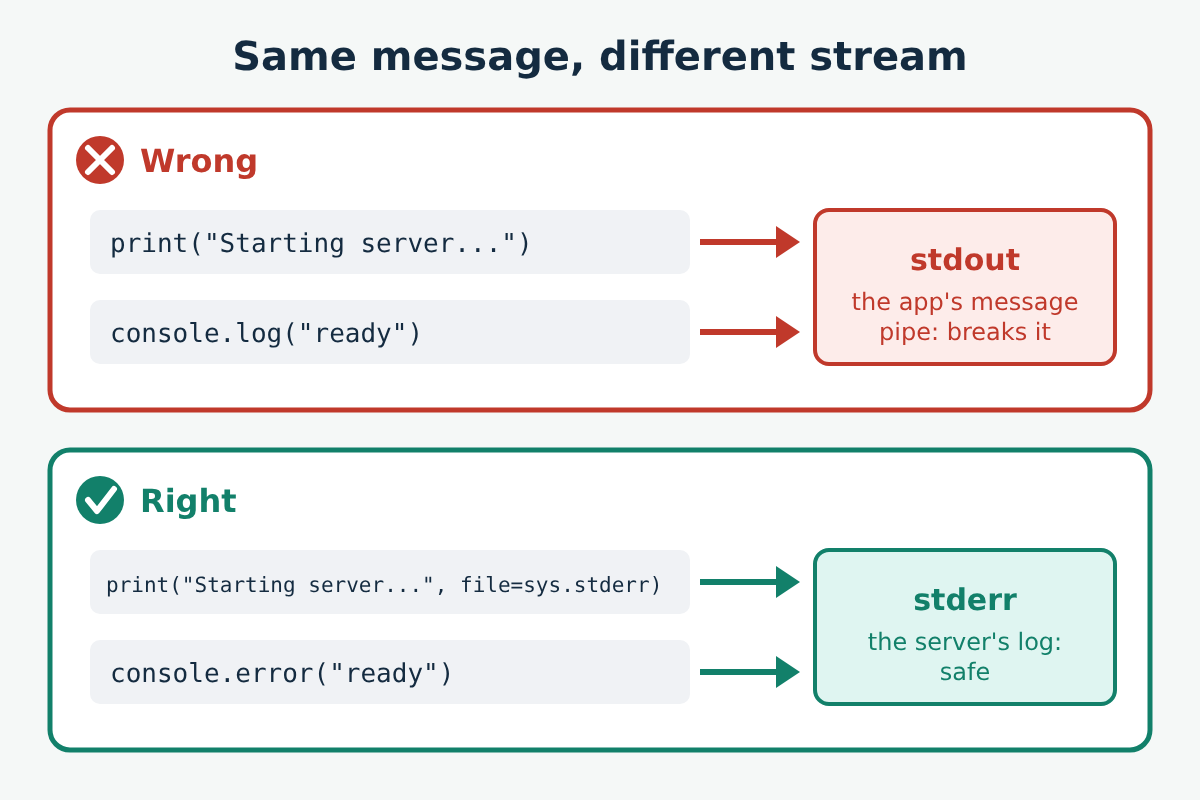
In Python:
import sys
import logging

# print() writes to stdout by default; point it at stderr
print("Starting server...", file=sys.stderr)

# logging's default handler already writes to stderr
logging.basicConfig(level=logging.INFO)
logging.info("Server ready")
In TypeScript or JavaScript, console.error() writes to stderr, while console.log() and console.info() write to stdout:
console.error("Server ready"); // stderr, safeThe text then shows up in the server's own log file in Claude Desktop instead of breaking the connection.
4. If a library prints on import or startup
Sometimes the line comes from a package your server imports, not your own code. Find it by searching for the fragment from the log, then look in that library's documentation for a quiet or verbosity option. In Python, if there is none, you can send its output to stderr just around the call that prints:
import contextlib
import sys

with contextlib.redirect_stdout(sys.stderr):
    noisy_setup()  # whatever call prints the banner
Keep the redirect narrow. The server's own replies still have to go to stdout, so never redirect around the code that runs the server.
5. Check wrapper scripts
If your config's command points at a shell script or batch file that sets things up and then starts the server, every echo in it goes to stdout too. Send those to stderr (echo "message" >&2 in a shell script) or remove them. The same applies to anything the script runs before the server starts, such as an activation step that announces itself.
When the message is different
If the server never starts at all and the log says spawn npx ENOENT or similar, the app could not find the program, which is a different problem with its own fix: see our guide to spawn npx ENOENT. Remote servers, which you reach over HTTP instead of starting on your computer, do not use stdout this way, so this error is a local-server problem; local versus remote servers explains the difference.
A safety note
When you test a server by running it in a terminal, it runs with your user account's access, the same as when the app starts it. Only run servers whose package names you copied from their official repository or documentation, and be careful with npx -y, which downloads and runs a package without asking. If you redirect a library's output, you are hiding what it prints, not changing what it does; if a dependency prints something you did not expect, find out why before you silence it. And whatever a server can read, a file or page it returns can try to steer the model through prompt injection, so give each server only the access it needs.
